

A Photo Album is mainly a collection of photographs and is made in the form of a book. Photo Album Templates in PowerPoint are added here for your help. Design a beautiful Photo Album Template with these samples. The best part about such an album is that is a great way to remember the old days. Photo albums can be created for almost every occasion. For example, if you have gone for a vacation with Twiddy rentals and have managed to click some great photographs then you can get excellent hard copies made and paste them inside a photo album. In earlier days, photo albums with black and white photographs were created, but nowadays, colored photo albums are created. Not only vacations you can create a photo album related to your wedding function, birthday function, graduation ceremony, or any sort of event that you like the most and want to preserve memories for the entire lifetime. The latest trend is to click digital photographs, and then create a photo album inside your computer. Photo Album Template will be helpful to you.
The album can be defined as a bound leaf book consisting of clear blank plastic sheets. A photo album is a collection of photos usually in a book that contains clear plastic sheets where photos can be put and saved. A photo album is the best way in order to keep your photos safe. You can get beautiful photo albums in different sizes from the market. In this modern age, online photo albums are playing a vital role to save your collection of photos and you can browse them everywhere in this world. Several websites allow you to create your personal & private photo albums on the web. Facebook is one of the most popular websites that provides you with the facility of an online photo album. In this way, you will be able to share your photos with your friends and family all over the world by using the internet.
What Is a PowerPoint Photo Album Template?
A PowerPoint photo album template is a ready-made presentation file (usually saved as .pptx) with the slide layout, placeholder image frames, and design theme already built in, so you only need to drop in your own photographs and captions. Unlike a blank presentation, it already accounts for image cropping shapes, spacing between pictures, and a consistent color palette across every slide, which is normally the hardest and most time-consuming part of building a slideshow from scratch. PowerPoint also has a built-in Photo Album feature under Insert > Photo Album that can auto-generate slides from a folder of pictures, and a downloaded template can be used either as a starting design for that feature or edited directly, slide by slide, without it.
Who Uses Photo Album Templates in PowerPoint?
These templates serve a wide range of people and occasions. Families use them to put together anniversary, reunion, or holiday slideshows that get played on a TV or projector during a get-together. Photographers and event organizers use them to hand clients a finished, branded photo recap of a wedding, birthday, or corporate event without designing layouts from zero for every job. Teachers and students use photo album layouts for class projects, yearbook-style presentations, or graduation slideshows. Because a .pptx file can be opened and edited by anyone with PowerPoint or a free viewer such as Google Slides, these templates are also popular as gifts: a finished slideshow of shared memories the recipient can watch, add to, or print later on.
Key Elements of a Great Photo Album Slideshow
A slideshow that holds people’s attention usually gets a few things right. Layout variety matters: repeating the exact same single-photo-per-slide layout for forty slides in a row gets monotonous, so mixing single-image, collage, and side-by-side layouts, which most of the templates below already do, keeps the pacing interesting. Short captions, such as a name, date, or one-line memory, add context without turning slides into text walls. If the album will be presented live rather than shared as a file, transition timing matters more than transition style: a plain fade that holds each photo for three to five seconds reads as more professional than a different flashy transition on every slide. Background music, when used, should be one continuous track set to loop or auto-advance rather than a new song triggered per slide, with its volume kept under any voiceover or spoken narration.
FREE Photo Album Templates are Given Here
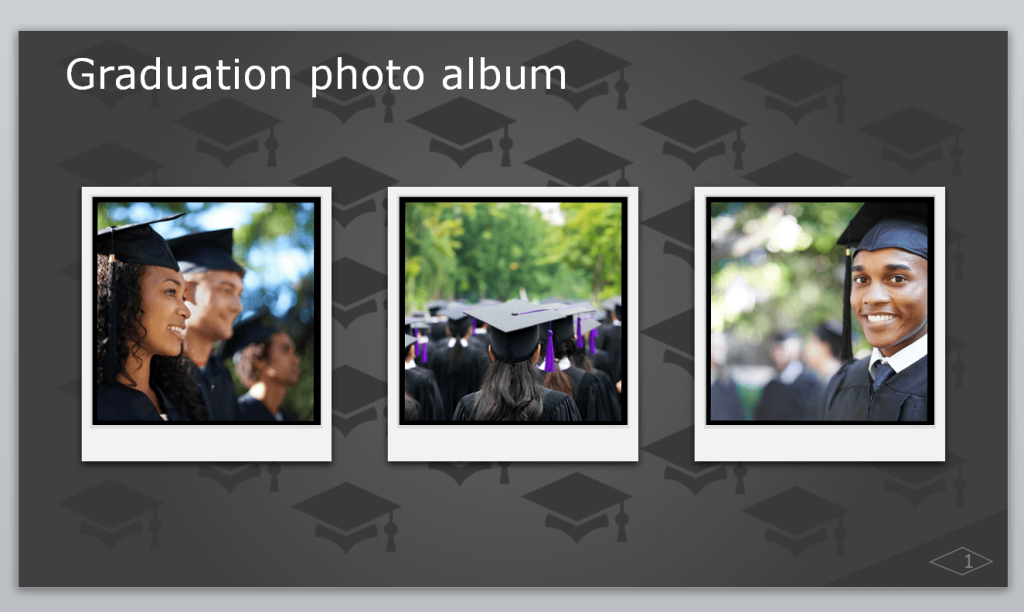
Graduation Photo Album Template

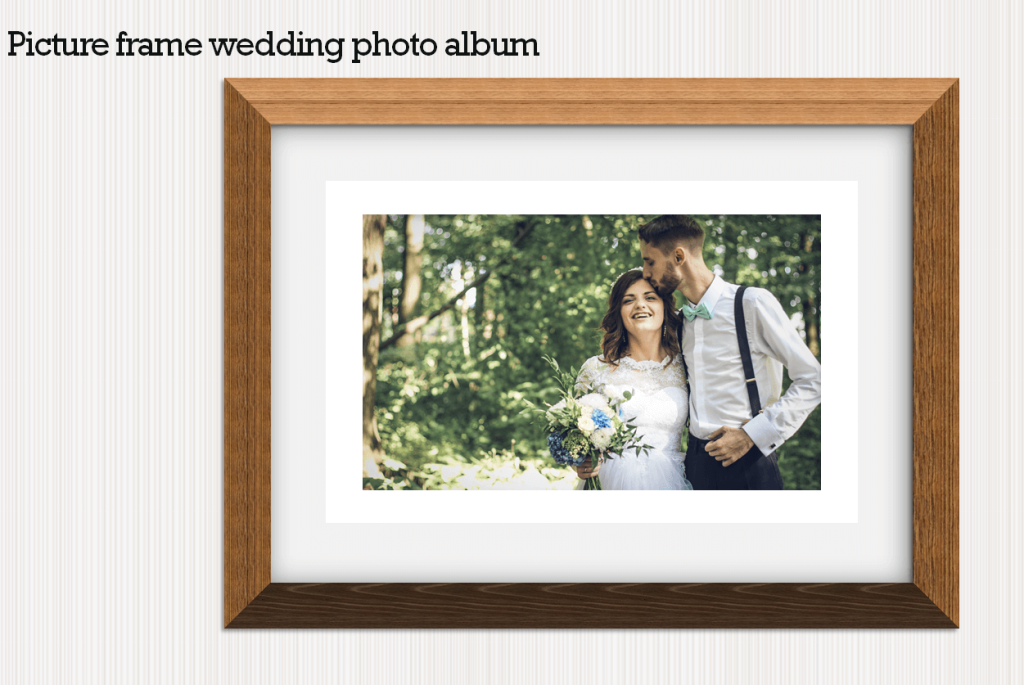
Picture Frame Wedding Photo Album Template
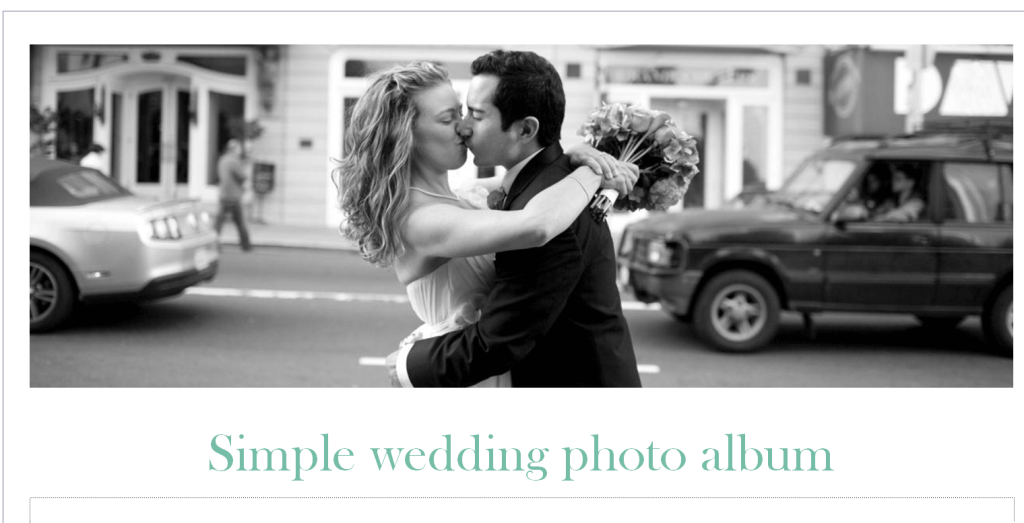
Simple Wedding Photo Album Template PPTX
Parents Anniversary Photo Album Template

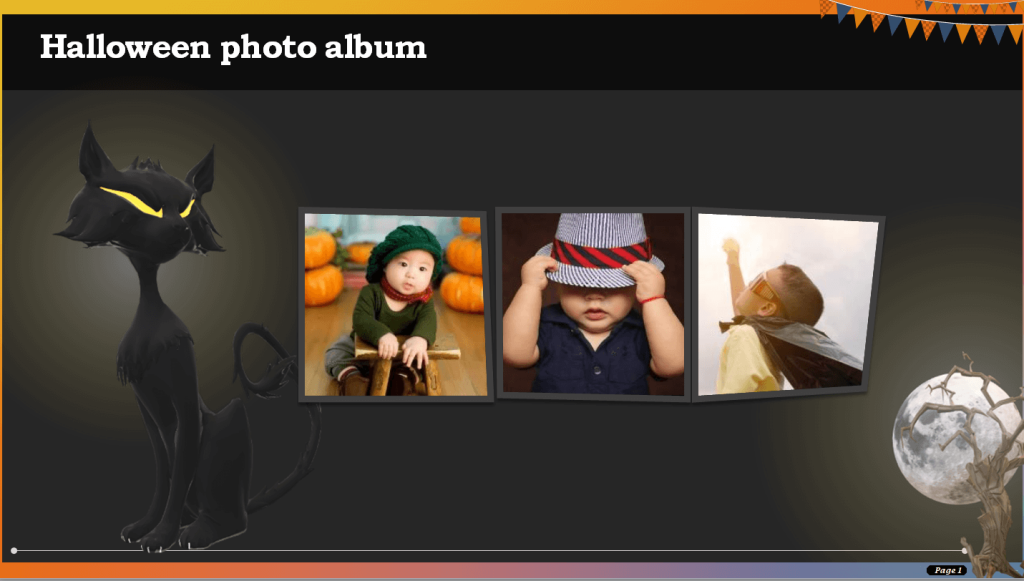
Halloween Photo Album Sample
Wedding Photo Album Word Template
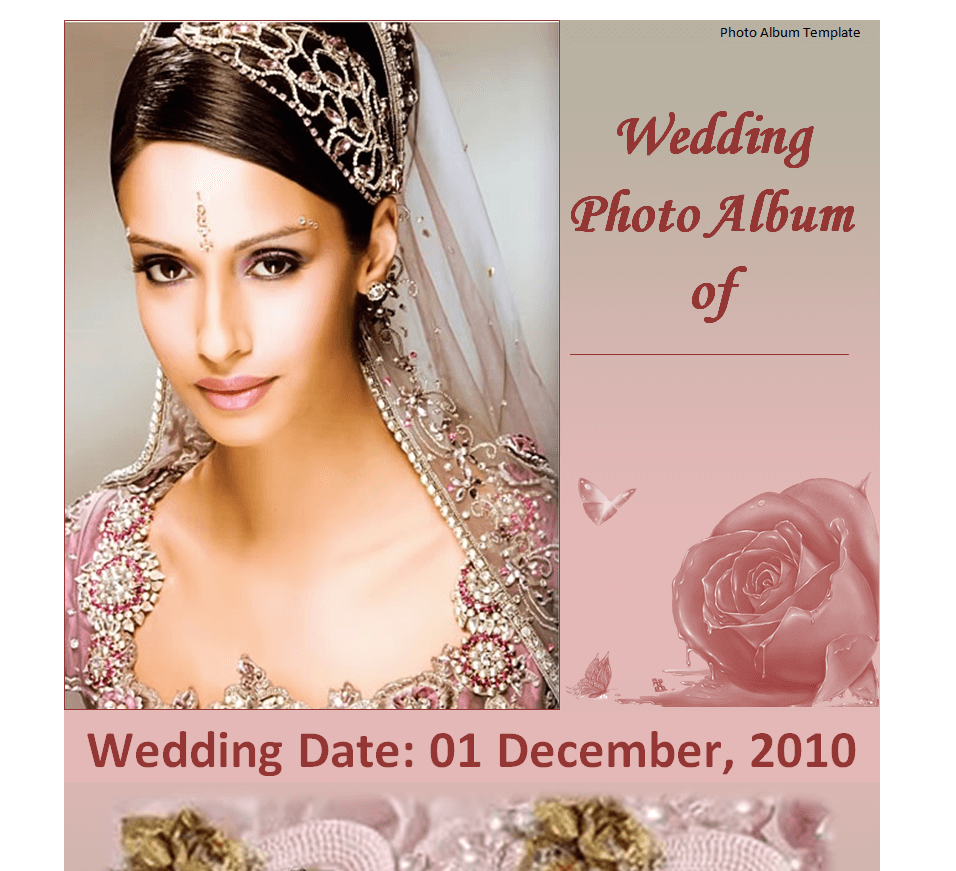
Classic Photo Album Template
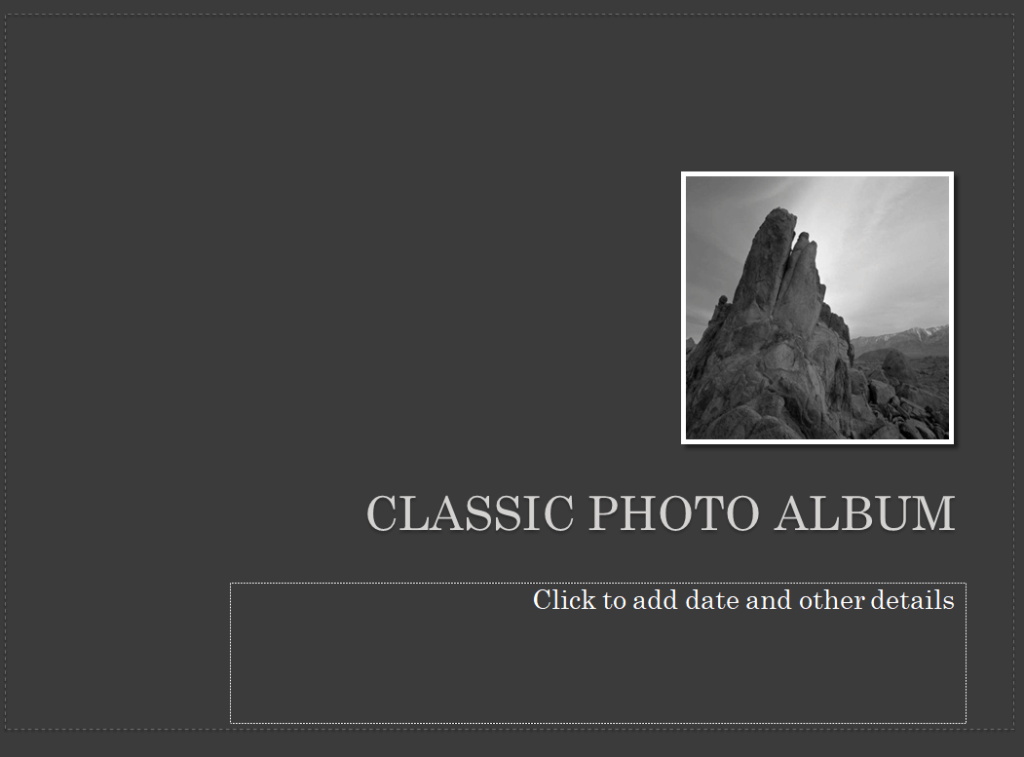
Photo Album Template for Birthday

Party Photo Album PowerPoint Template

Sports Award Photo Album Template

Family Reunion Photo Album Template

Kids Party Photo Album Template
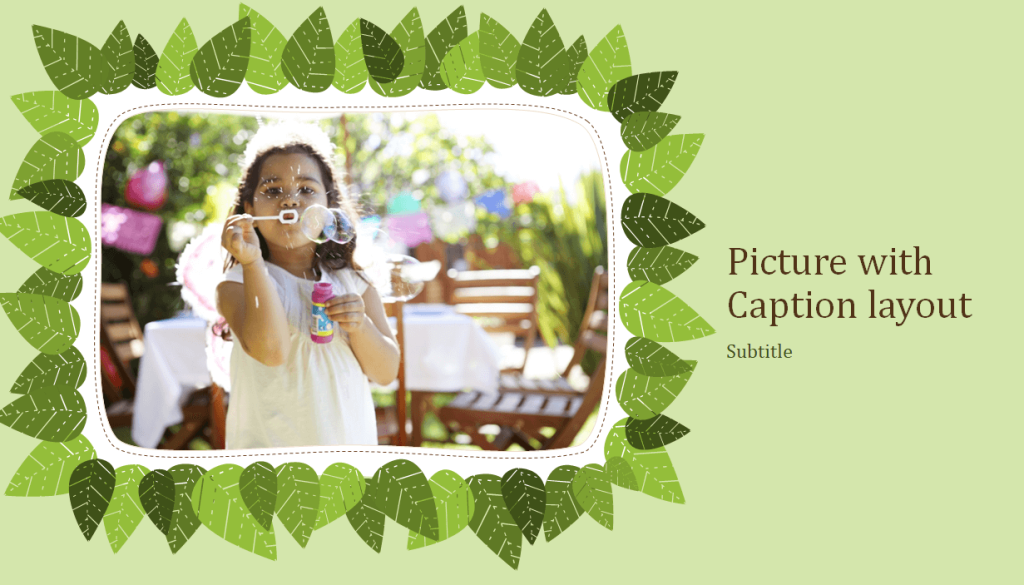
Vacations Photo Album Design Template

Marriage Photo Album Template Doc
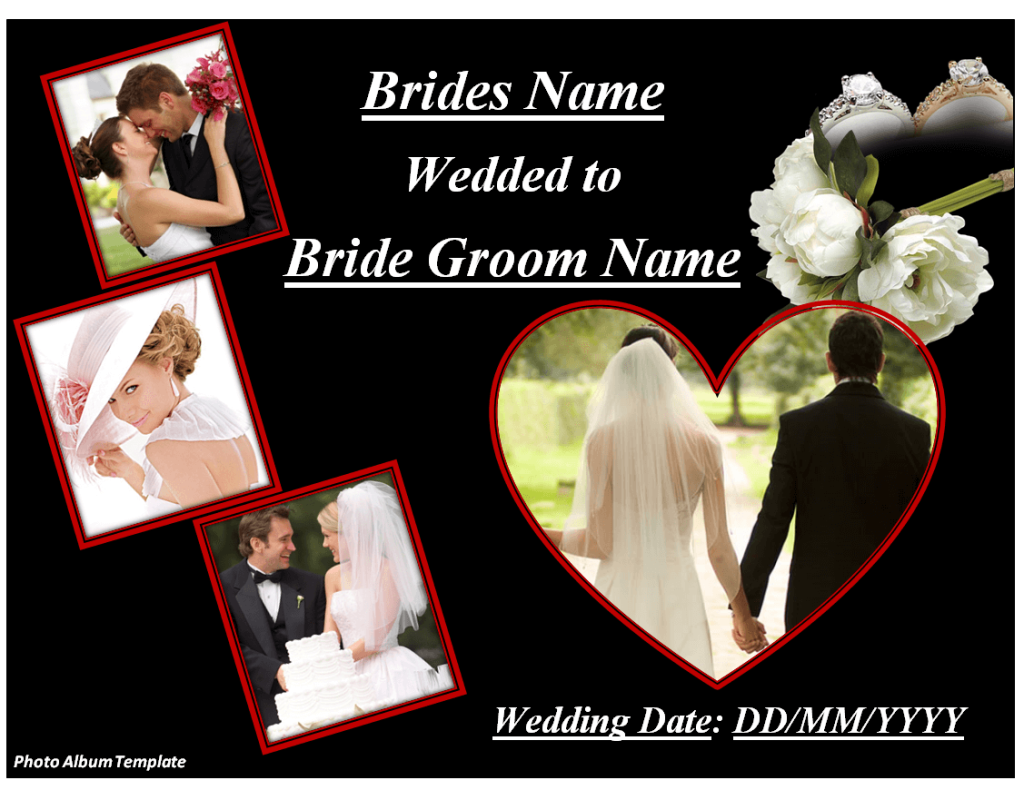
Retirement Photo Album Template
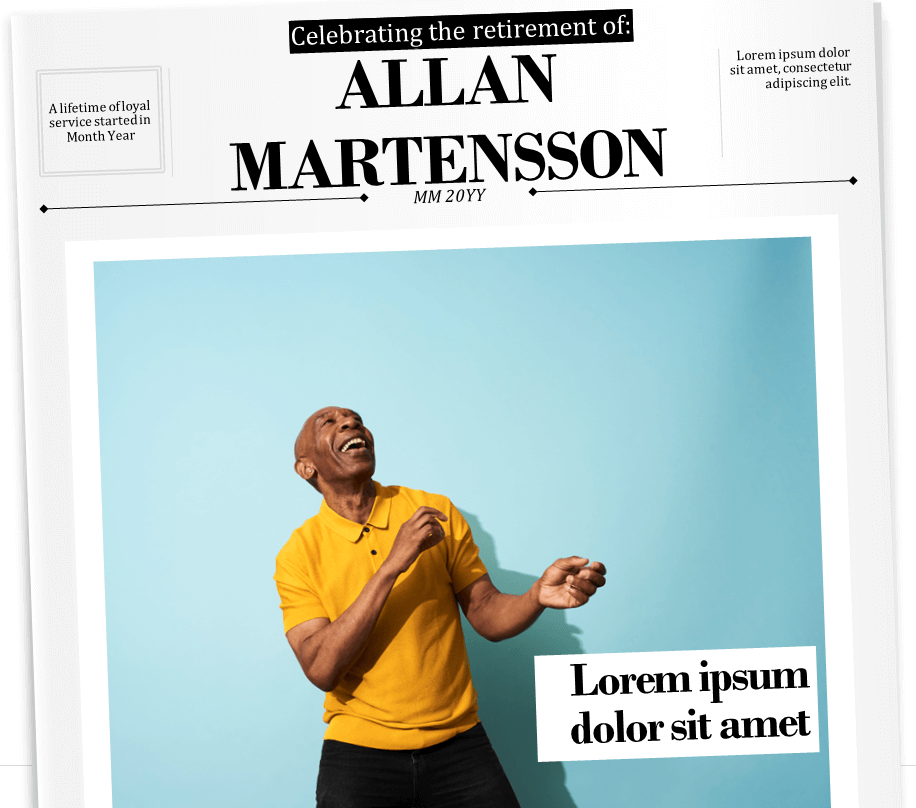
Holiday Photo Album Template in PowerPoint

Spring Break Photo Album Template

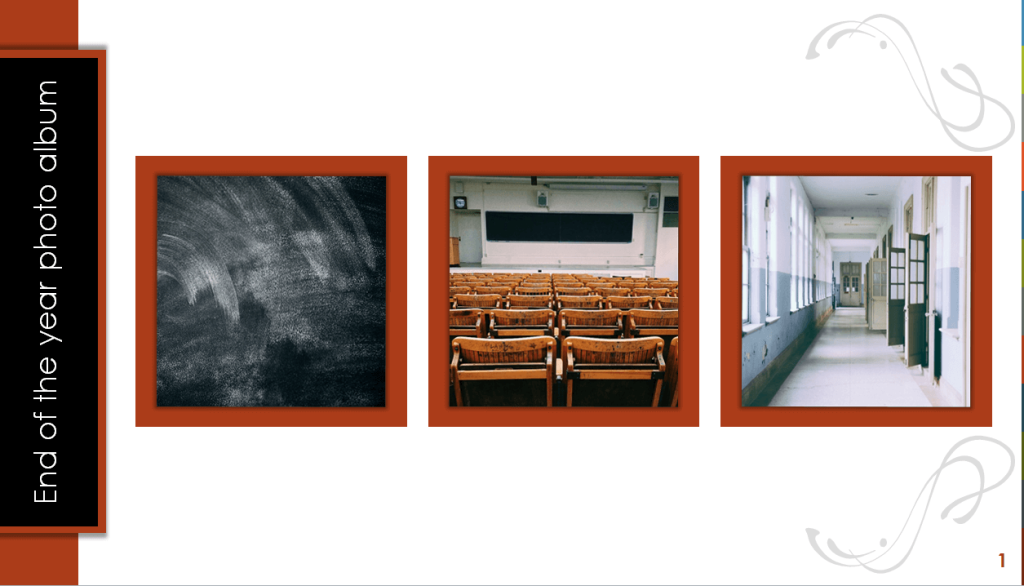
Year End Photo Album Template
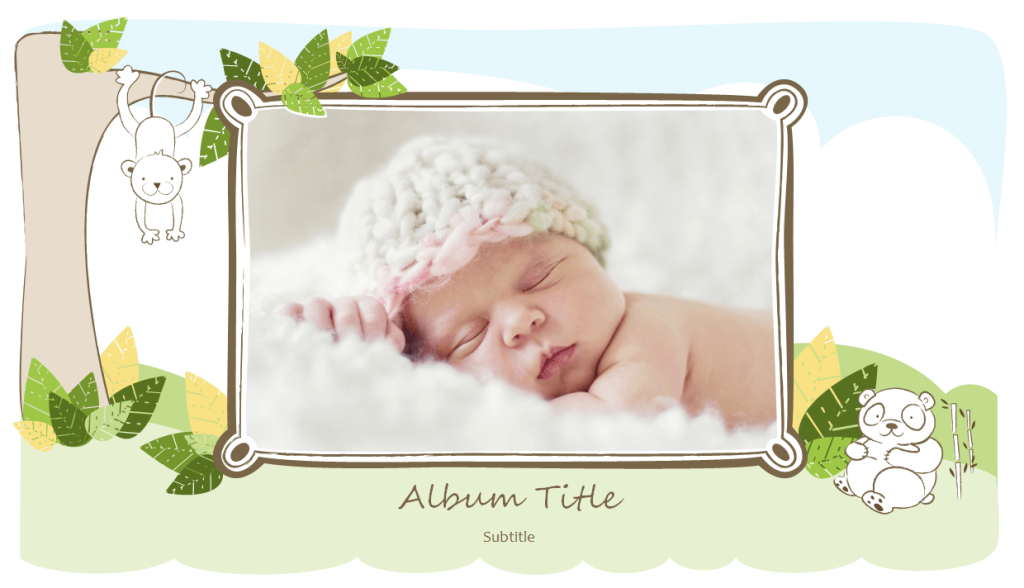
Baby Photo Album Template
How to Add and Customize Photos in a Template
Open the downloaded template in PowerPoint and save a copy before editing, so the original download stays untouched if you want to start over. Click directly on any placeholder image and use Picture Format > Change Picture to swap in your own photo without losing its frame, crop shape, or position on the slide. Use Format Picture > Crop to fine-tune how each photo fills its frame, which matters most when a portrait-orientation photo is being placed into a landscape-shaped frame. Update the caption text boxes by clicking the placeholder text first, so your typed caption inherits the existing font and size rather than resetting to a default style. Once one slide is filled in, right-click it in the thumbnail pane, duplicate it to keep the same layout for the next batch of photos, and repeat the picture-swap and caption steps. Finally, check the slide order in the thumbnail pane, drag any slide that’s out of sequence, and run through Slide Show view once from start to finish before saving or exporting, to catch a cropped face or a stretched image while it’s still easy to fix.
Common Mistakes to Avoid
Low-resolution images are the most common problem: a photo pulled from a group chat or a small web thumbnail can look sharp on a phone screen but pixelated on a full slide or a projector, so using the original camera or phone-gallery file rather than a shared, compressed copy avoids this. Cluttered slides, meaning too many photos, oversized captions, or text on every single image, slow the album down and tire the viewer; not every photo needs a caption. Inconsistent style, such as mixing several different template themes or font families within one album, is the fastest way to make a slideshow look unplanned, so picking one template and sticking with its fonts and color scheme throughout keeps the whole thing cohesive. Finally, skipping a final proofread pass before sharing means a typo in a caption or an accidentally duplicated slide becomes the first thing viewers notice.
Practical Tips for a Polished Result
Organize photos into a single folder, in the order you want them to appear, before opening the template; renaming the files with a number prefix such as 01_, 02_, and so on makes it easy to insert them in sequence rather than hunting through a camera roll mid-edit. For anyone without PowerPoint installed on the viewing device, an album can be exported as a video through File > Export > Create a Video, so it plays automatically with transitions and any background music intact on a phone, TV, or social media post. For a printed keepsake, export the finished slides as high-resolution images or a PDF and use a dedicated photo-printing or photo-book service rather than a home printer, which usually gives noticeably better color accuracy for a physical album.
Frequently Asked Questions
Can I use these PowerPoint photo album templates for free?
Yes, every template listed above can be downloaded and edited at no cost. Since they are regular PowerPoint (.pptx) files, they can also be opened for free in PowerPoint Online, Google Slides, or LibreOffice Impress if you don’t have a full Microsoft Office license.
How many photos can I fit in one album?
There’s no fixed limit; it depends on the layout you duplicate for each slide. A single-photo layout typically fits one or two images per slide, while a collage-style layout can hold four to six, so a thirty-photo album usually runs anywhere from ten to twenty-five slides depending on which style you pick.
Can I turn the finished slideshow into a video with music?
Yes. PowerPoint’s Export > Create a Video option renders the whole presentation, including any transitions and a background audio track you’ve added, into an MP4 file that plays on its own without needing PowerPoint installed.
What’s the difference between a template and PowerPoint’s built-in Photo Album feature?
The built-in Photo Album feature under Insert > Photo Album auto-generates plain slides from a folder of photos with minimal styling, while a downloaded template like the ones above already has a finished design, frame shapes, and color theme applied, so it needs far less manual formatting work afterward.