

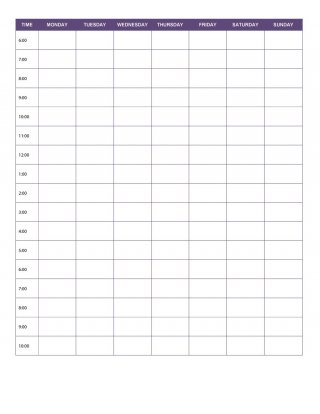
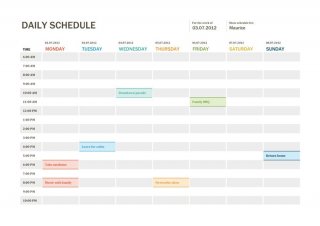
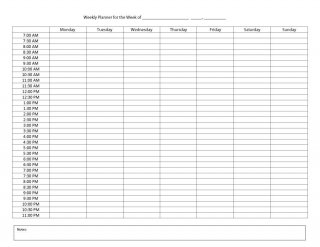
Choose your weekly layout by what fills the page. Hourly columns suit appointments, while a layout with room under each day is easier for errands and deadlines.
How to Use These Weekly Planner Templates
- Pick a format. Download whichever version matches the software you already use — Word if you want to type directly into the file, Excel if you prefer a spreadsheet, PDF if you plan to print it blank, or the ZIP file if you want every layout in one download.
- Set the week’s dates. Fill in the date range at the top and label each column or row with the correct day before you start adding tasks, so the plan lines up with your actual calendar.
- List your fixed commitments first. Add meetings, classes, appointments and anything with a set time before filling in flexible tasks, so the non-negotiable items are locked in first.
- Add flexible tasks and errands. Slot in the rest of your to-do list around the fixed commitments, spreading heavier tasks across lighter days where possible.
- Review it daily. Check the planner each morning and cross off or move tasks as the day goes on, and glance at the days ahead so you can prepare in advance.
- Reset it for the next week. At the end of the week, either print a fresh copy or clear the digital version and carry over anything unfinished, so the template stays ready to reuse indefinitely.
Who Uses a Weekly Planner Template?
Weekly planner templates are used by a wide range of people who need a simple way to see an entire week at a glance. Students use them to line up classes, assignment deadlines and study sessions so nothing gets missed between subjects. Working professionals use them to block out meetings, project deadlines and personal errands in one place instead of juggling several apps. Freelancers and small business owners rely on a weekly layout to balance client work, invoicing and admin tasks across the week. Parents and homemakers use a weekly planner to coordinate school runs, appointments, meal planning and household chores for the whole family. Because the template is a blank, editable file, anyone who prefers writing a plan down, or typing it once and printing copies, rather than relying purely on a phone calendar will find it useful.
Download Weekly Planner Templates for Word and Excel

Key Elements of an Effective Weekly Planner Template
Not every weekly planner is built the same way, but the templates below share a few core elements that make them genuinely usable rather than just decorative:
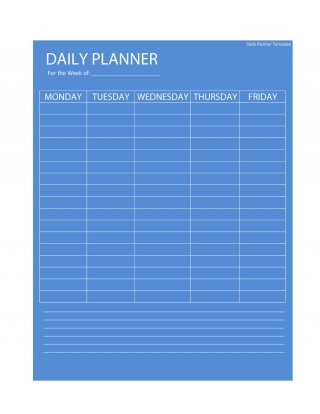
- Day-by-day columns or rows for Monday through Sunday, or a Monday-to-Friday work week depending on the version, so every day has its own clearly marked space.
- A time or priority column to log appointments by hour or to rank tasks by importance, which keeps the day from turning into an unordered to-do list.
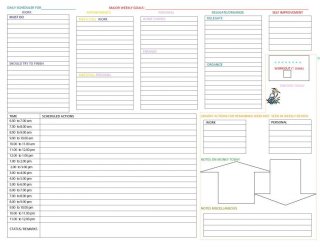
- A notes or goals section for the week’s bigger objectives, reminders, or anything that does not fit neatly into a single day.
- Clean, printable formatting that still looks organized once it is printed on a standard sheet of paper and filled in by hand.
- An editable file format (Word, Excel or a fillable PDF) so the labels, days, and sections can be renamed or resized to match how you actually plan.
Common Mistakes to Avoid
- Overloading a single day. Cramming too many tasks into one day and leaving others nearly empty makes the whole week harder to follow; spread the workload out instead.
- Skipping the notes or goals section. Leaving this blank means bigger weekly objectives get lost among daily tasks instead of staying visible.
- Never revisiting the plan. Filling the planner out once at the start of the week and not checking it again defeats the purpose; it only works if you look at it daily.
- Being too rigid. Treating every entry as fixed, instead of adjusting when priorities change, tends to make people abandon planning altogether after a few weeks.
- Choosing the wrong format. Printing a version meant to be typed into, or trying to hand-write in a very small cell, makes the template harder to use than it needs to be.
Practical Tips for Getting More Out of Your Weekly Planner
- Keep a master list of recurring tasks (bills, weekly meetings, chores) so you are not rewriting the same items every single week.
- Use color coding by hand or with highlighter to tell work, personal and family tasks apart at a glance.
- Plan the upcoming week a day early, typically Sunday evening, so Monday starts with a plan already in place rather than a blank page.
- Keep the finished template somewhere visible, whether that is a printed copy on a wall or desk, or pinned in a folder you open every morning.
- Pair the weekly view with a monthly planner for longer deadlines, and use the weekly template to break those bigger goals into daily action.
Frequently Asked Questions
Are these weekly planner templates free to use?
Yes, every template on this page is free to download, and each one can be edited, printed and reused as many times as you need.
What software do I need to edit them?
The Word files open in Microsoft Word or any compatible word processor, the Excel file opens in Microsoft Excel or Google Sheets, and the PDF version can be printed directly or filled in with any PDF reader that supports form filling.
Can I use a weekly planner template for work and personal tasks together?
Yes. Many people use one weekly layout for everything and simply separate work and personal items by column, color or a short label, rather than keeping two separate planners.
How is a weekly planner different from a daily or monthly planner?
A daily planner focuses on a single day in more detail, a monthly planner is better for long-range deadlines and events, and a weekly planner sits in between, giving enough room to track daily tasks while still showing the whole week’s workload at once.
Related templates you may find useful: free daily planner templates, free weekly schedule templates and free contingency plan templates.
You can also browse our full collection of free plan templates for more ready-to-use designs.